Why Your Windows PC Can’t Open iPhone Photos (and How to Fix It in 5 Seconds)
You just returned from a vacation, a wedding, or a birthday party. You plug your iPhone into your PC, drag over 500 photos to a folder, and get ready to relive the memories on a big screen.
You double-click the first file.
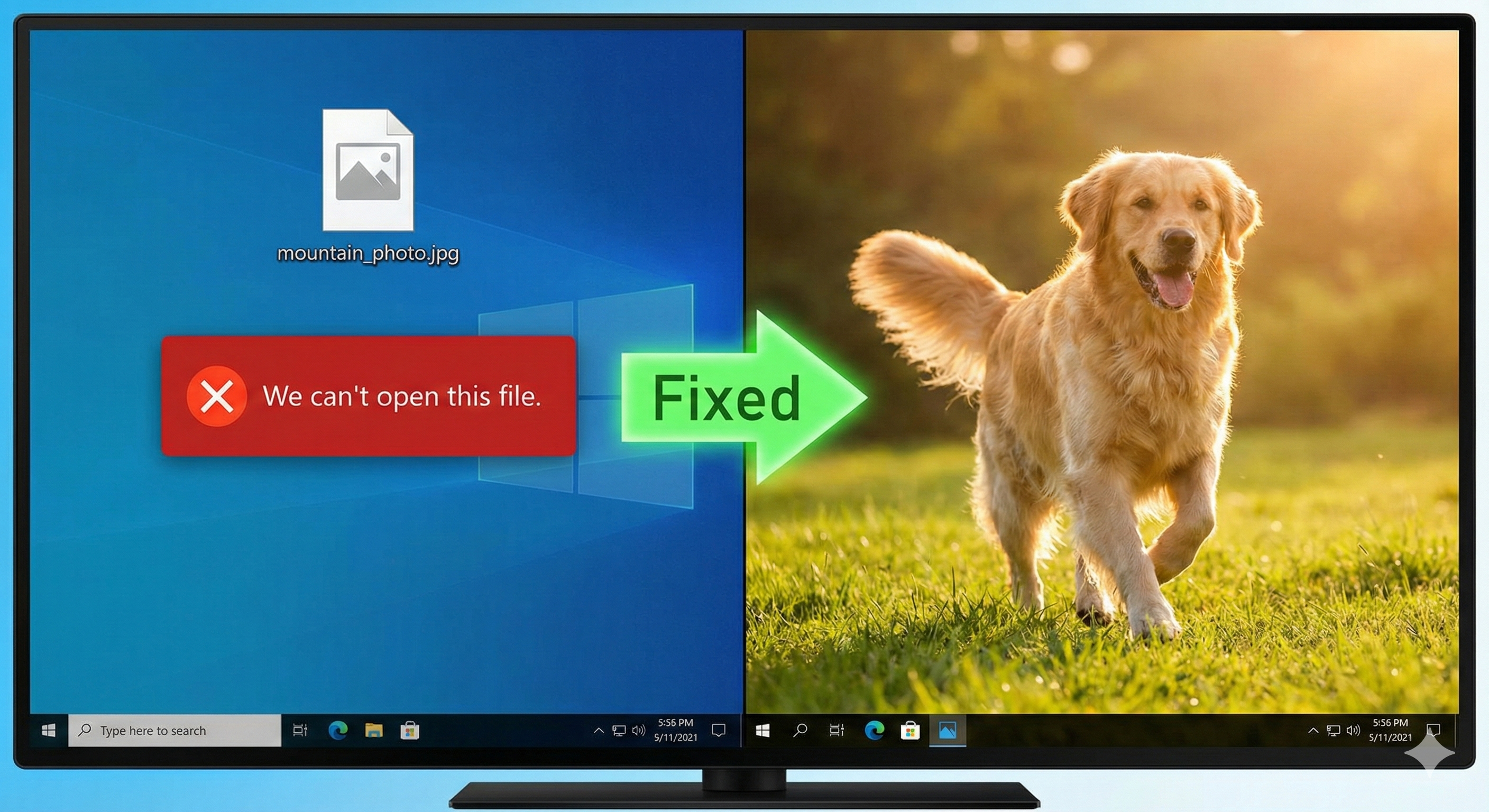
Instead of a smiling face, you get a black screen. Or worse, a cryptic error message from Windows: "We can't open this file," or "The HEVC Video Extension is required to display this file."
Your photos aren't corrupted. Your hard drive isn't broken. You are simply a casualty in a file format war between Apple and Microsoft.
Here is exactly what is happening and how to fix it immediately without installing sketchy software.
The Culprit: What is a .HEIC File?
If you look at the file names of your photos, you will notice they don't end in .JPG or .PNG. They likely end in .HEIC.
HEIC stands for High Efficiency Image Container.
Apple switched to this format a few years ago because it is technically brilliant. A HEIC photo looks just as good as a standard JPG but takes up about half the storage space. This is how you can fit 10,000 photos on your phone without running out of space.
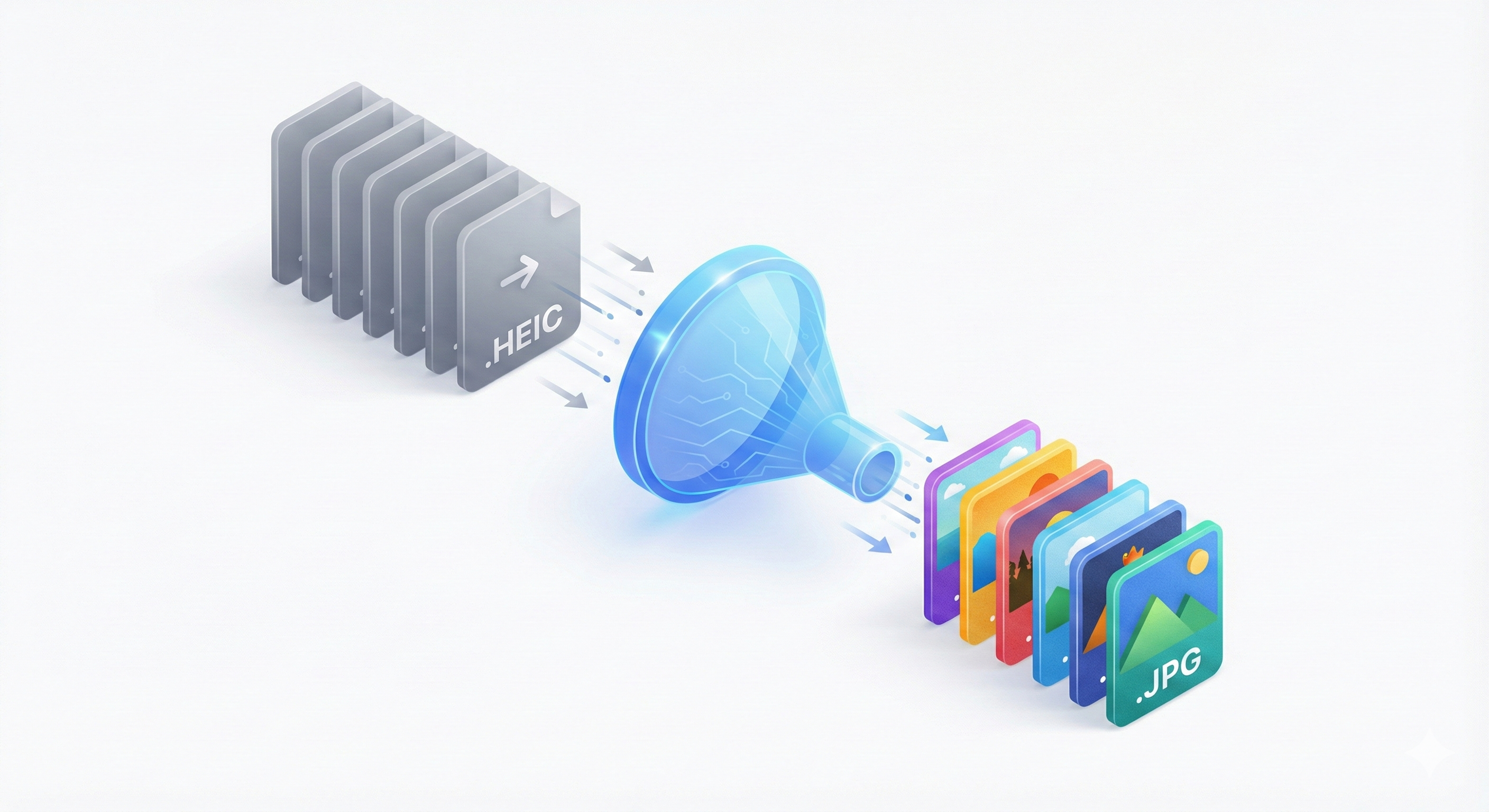
The transformation from Apple's HEIC format to universal JPG.
The problem? Windows does not natively support HEIC by default.
When you move that efficient Apple file to a Windows environment, your computer literally doesn't know how to read the language the photo is written in.
The "Official" Fix (and Why It Sucks)
If you follow the prompts Windows gives you, it will often direct you to the Microsoft Store to download the "HEIF Image Extensions."
Sometimes this is free. Sometimes, bafflingly, they charge $0.99 for the video codec required to make it work.
Even if you pay, this only fixes the problem on your specific computer. If you email that HEIC file to a friend, a boss, or try to upload it to a website (like a visa application or a real estate listing), it will fail again.
The 5-Second Fix: Universal Compatibility
The permanent solution is not to change your computer to fit the file; it's to change the file to fit the world.
You need to convert your images to JPG.
JPG is the universal language of digital images. It works on Windows 98, it works on Windows 11, it works on Android, and it works on every website on the internet.
You don't need to download heavy software like Photoshop or install sketchy freeware apps that clutter your toolbar to do this. You can do it right here, in your browser.
How to Fix Your Photos Now:
- Click here to go to the iPhone Photo Fixer (or click the BrowserConverter logo at the top).
- Drag and Drop your stubborn HEIC photos into the box. You can do one at a time or select all 500.
- Select "JPG" as your target format.
- Click Convert.
BrowserConverter.com processes the files instantly. We strip away the Apple-specific formatting and give you a clean, high-quality JPG that you can view, print, share, and upload anywhere.
"Don't let a file extension keep your memories held hostage."
Frequently Asked Questions
Why can’t Windows read HEIC files?
Because HEIC requires specific codecs (decoders) that aren’t always installed by default on Windows. While Apple builds this support into every iPhone, Windows often requires an extra extension to "read" the file.
What is the HEIC file extension?
It is a space-saving iPhone photo format (High Efficiency Image Container). It keeps image quality high while using half the storage of a normal photo, but it causes compatibility issues on PCs and older devices.
Why does Windows photo viewer show a black screen for iPhone photos?
This is a decoding error. It usually means your computer is missing HEIC/HEVC support. The viewer knows the file is there, but it cannot translate the data into a picture, so it displays a black screen.
Should I convert HEIC to JPG?
Yes, you should convert if you need the most compatible format for sharing, uploading, or archiving. While HEIC is great for your phone storage, JPG is the universal standard that works on every device in the world.